Install and configure the donation box widget - modern themes
Lift provides an attractive and versatile donation box widget that can be configured to match the look and feel of your online store. Let's look at how to install and configure this widget on a modern Shopify theme (an Online Store 2.0 theme).
Installation
If your store uses a modern Online Store 2.0 theme then the Lift donation widget can be installed and configured via the Theme Editor in your Shopify admin. Not sure if your theme is a modern or vintage theme? Check out the Shopify guide on how to tell which type theme you are using.
Before trying to install the Lift donation box widget on your store, make sure you have configured a campaign that supports at least one cause. The campaign does not need to be set as active to be visible in the theme editor.
Configure widget settings
- Click on the 'Integrate' menu item in Lift and then configure the donation box widget.
- On this page you can switch between the different page templates that support app blocks on your store:
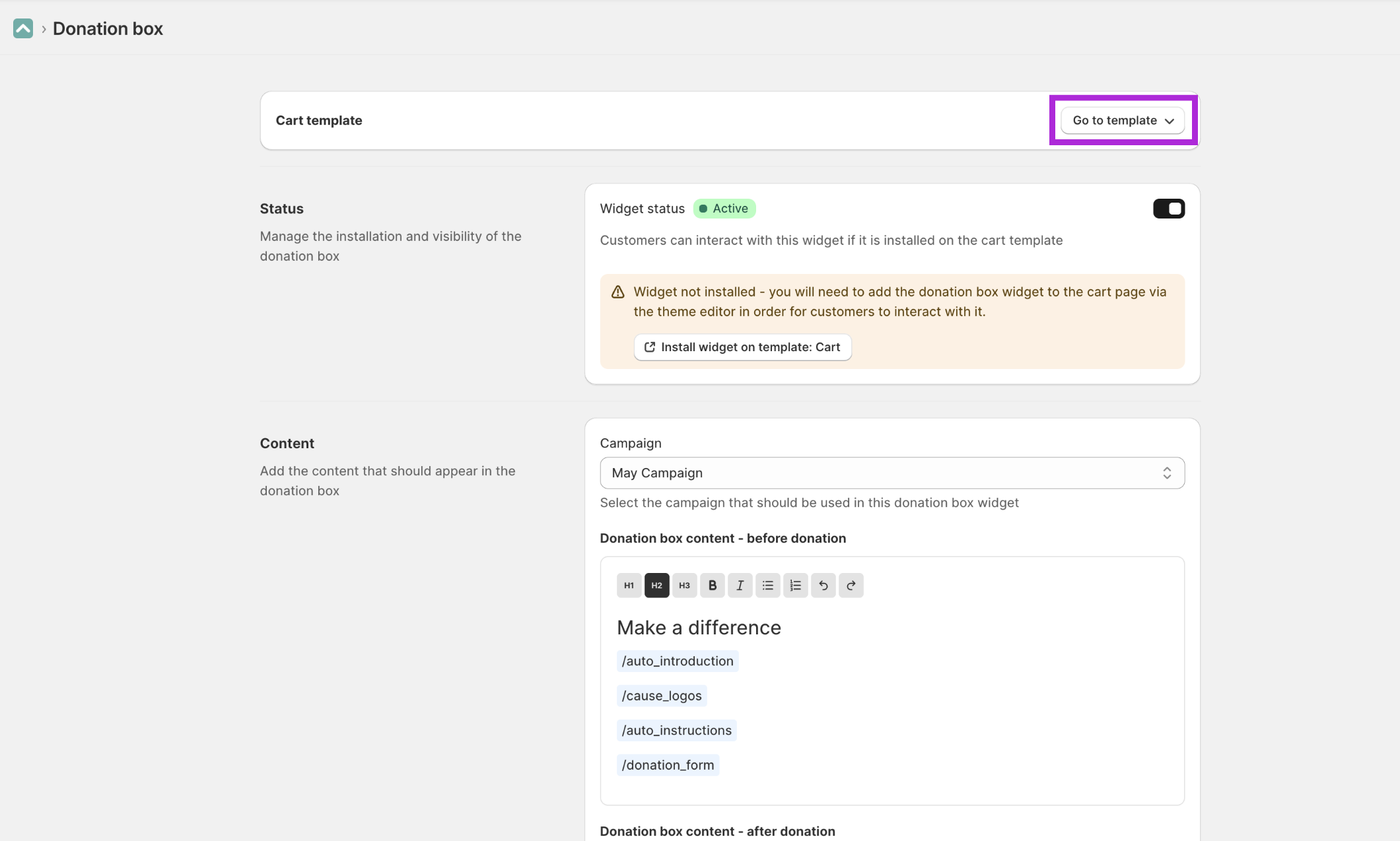
- Select the campaign that you would like to appear in the donation box on your chosen template.
- You are also free to edit the text that should appear in the donation box widget both before and after a donation is made. You are able to make basic formatting edits to this text and if required you can add dynamic elements. Press the '/' key to bring up a menu of available dynamic elements - at a minimum you should include the donation form if customers can donate). Dynamic elements include:
auto_introduction(pre-donation only). Lift will compose an automatic introduction explaining that you are raising money for the cause/s associated with your campaign (english only).cause_logos(pre-donation only). The logo and name of the cause/s your are supporting with a link that opens up a popup with more information.auto_instructions(pre-donation only). Lift will compose an automatic set of instructions explaining how customers can support your campaign (english only).donation_form(pre-donation only). The donation form configured per your campaign settings - must include this if customers are able to donate per your campaign settings.auto_thank_you(pre-donation only). Lift will compose an automatic thank you message after a donation is added to the cart (english only).
- Advanced settings include the ability to add the text that should display when the widget is set to 'compact' mode (widget initially takes up less space. You can also edit the text on the donation button that is part of the
donation_formdynamic element.
Install widget and configure widget look-and-feel
- Make sure you have saved changes to your widget configuration.
- If the widget is not yet installed on your theme you will see a message that looks like this:
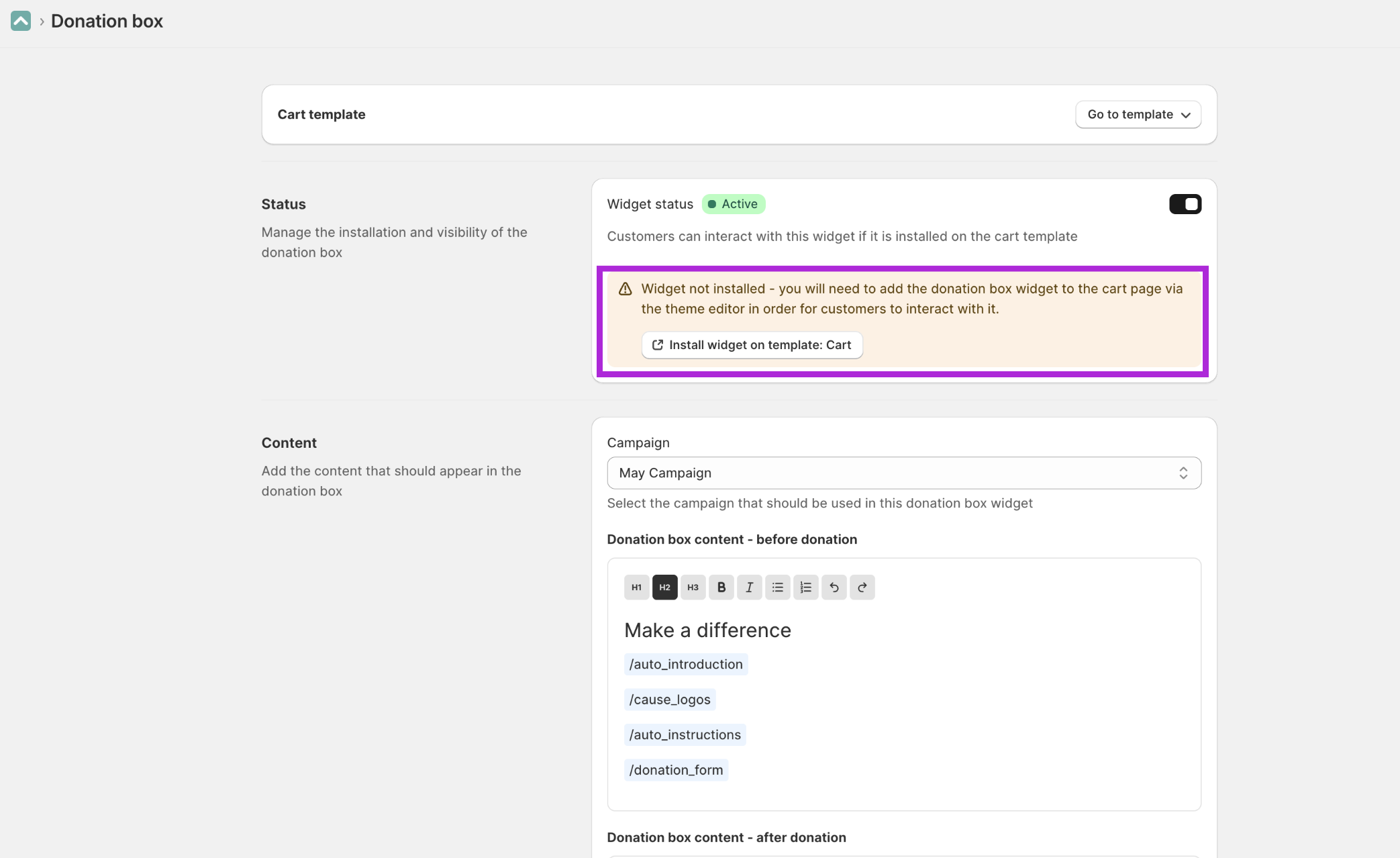
- Click the button to install the widget. This link will open the theme editor on the Cart template and will add the Lift widget block:
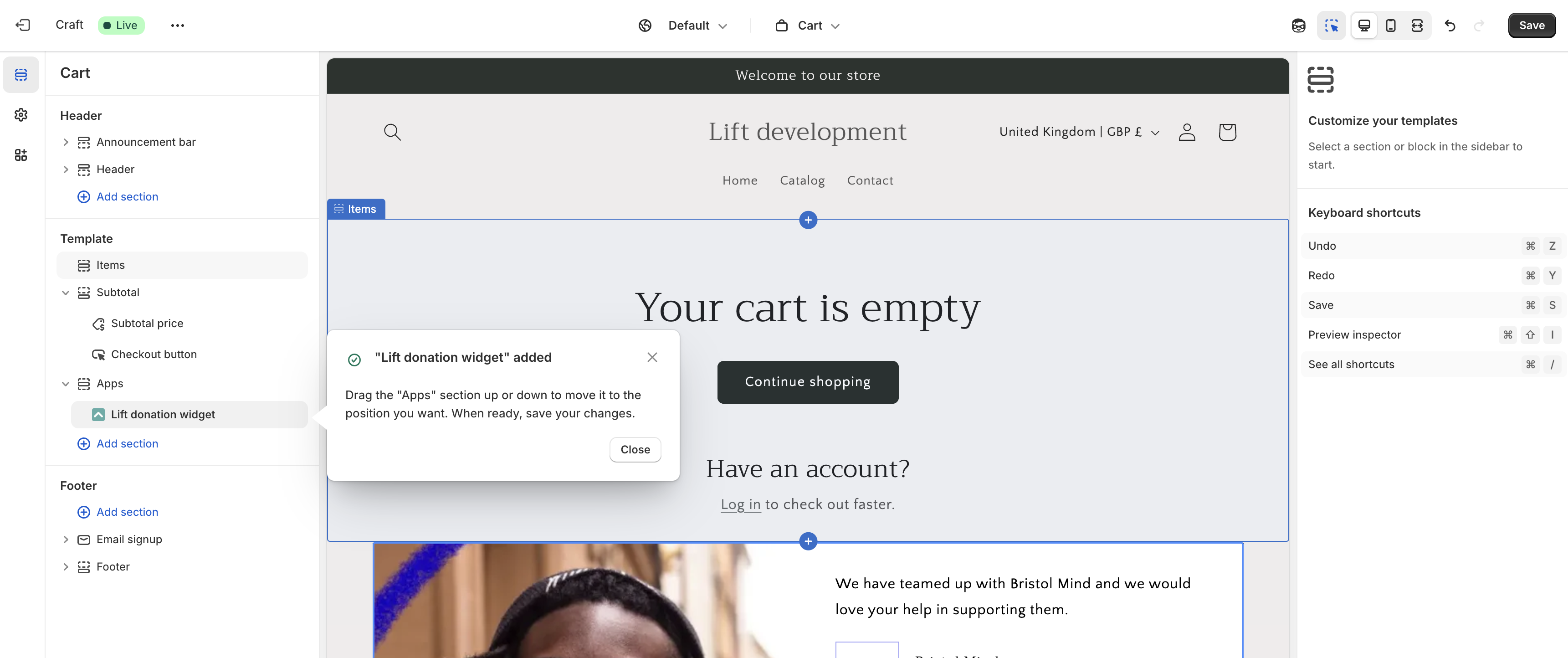
- Like all theme blocks the Lift widget can be moved into a new position, removed or added to a new section:
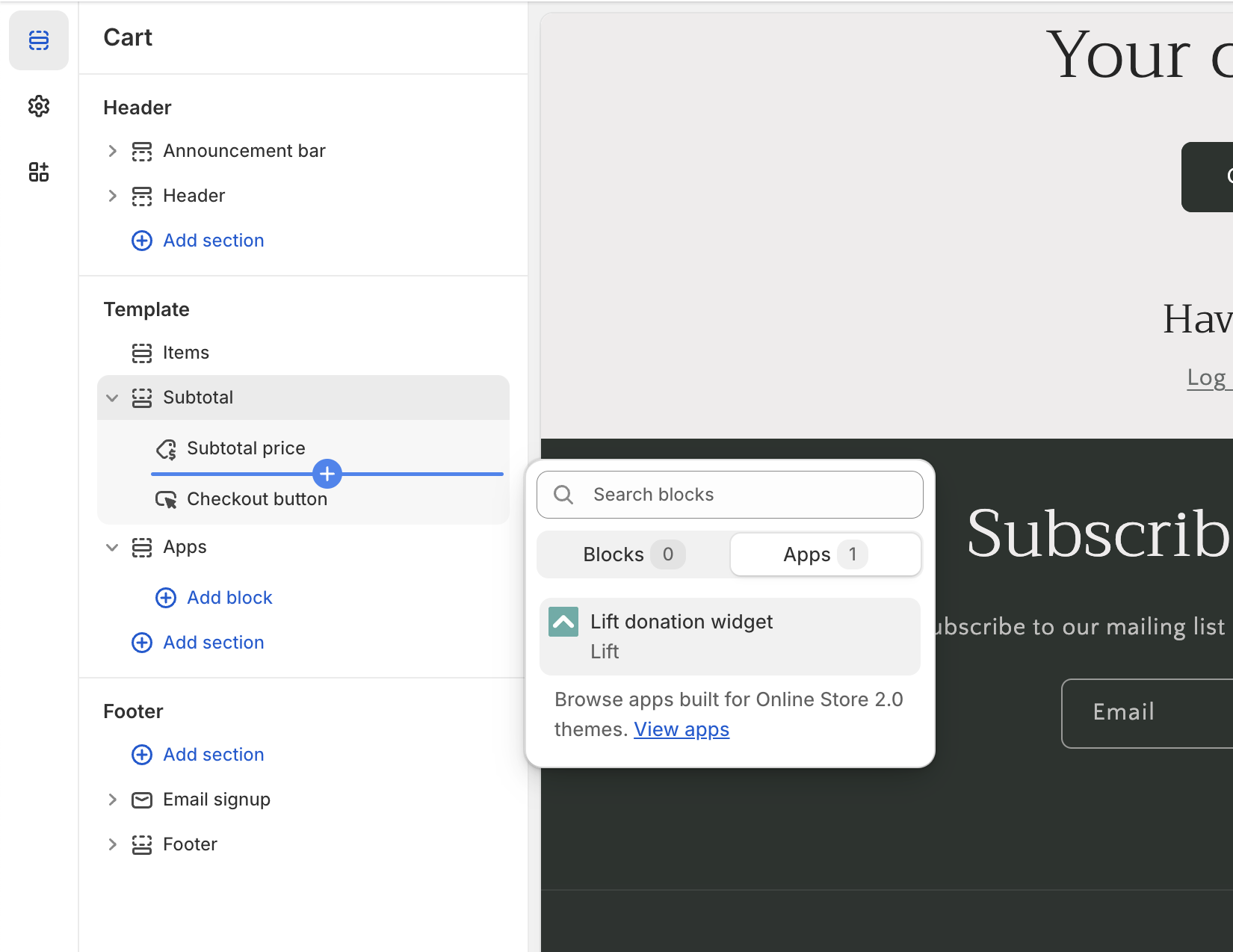
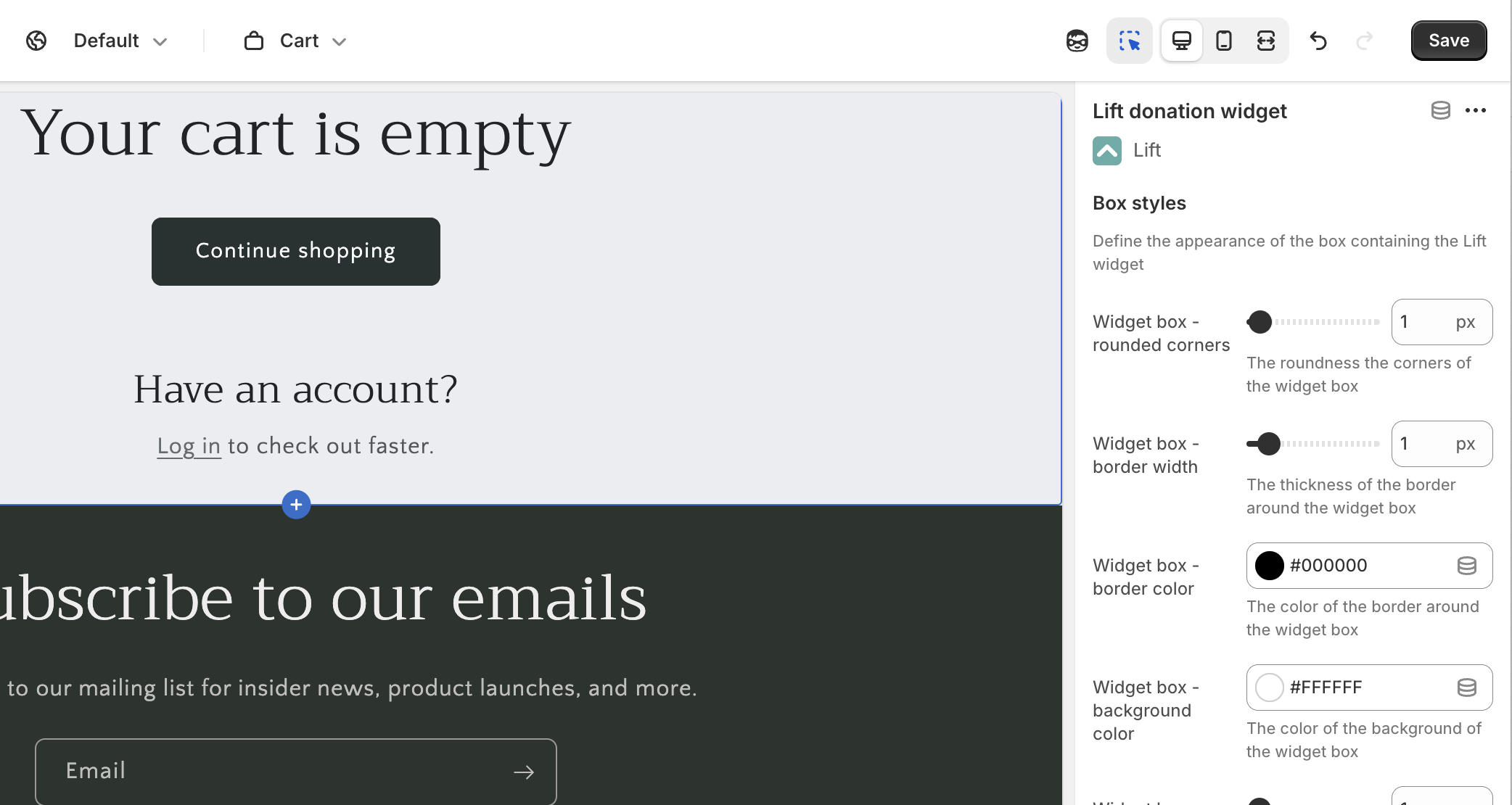
- There are multiple styling options available for the Lift donation box widget. No coding knowledge is required so we recommend tweaking the options until you are happy that the donation box looks like a natural part of your online store.
- If you need to style the donation box in a manner that is not supported by the available options, please contact Lift support and we can help with advanced styling.
- When you are happy with the placement and styling of the Lift donation widget don't forget to hit 'save' in the top right hand corner of the screen: