Adding the popup donation widget
Lift offers a popup widget that customers can open up by click on a 'floating' button that appears on all pages of your store.
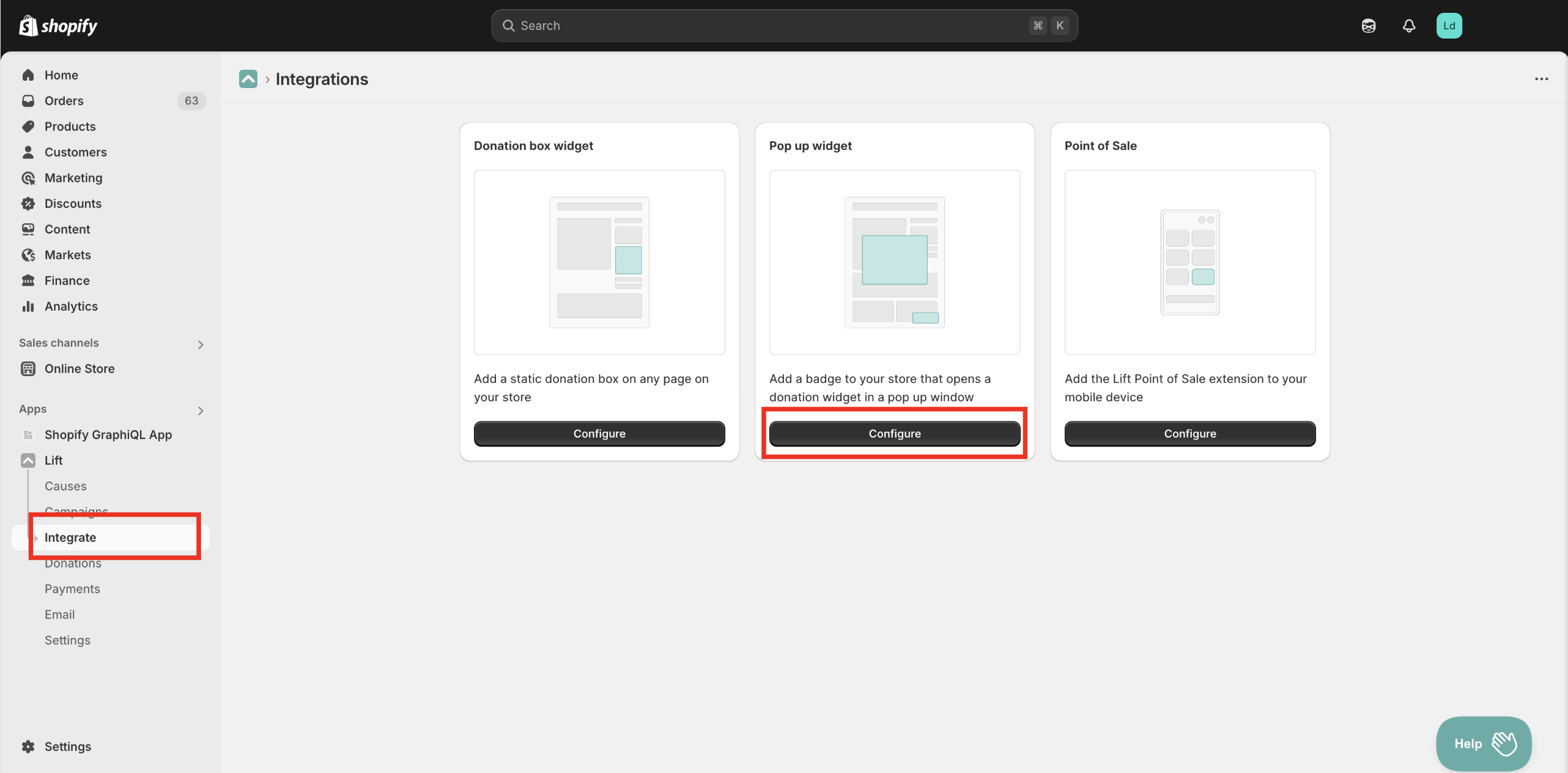
To add the popup widget to your store, you'll first need to have added a Cause and configured a Campaign to raise funds for it. Next head to the 'Integrate' page and then click on 'configure' for the popup donation widget:
Configuring the popup
You can configure both the floating button that triggers the popup as well as the content within the popup itself.
The floating button can either be a plain, coloured button or you can upload an image that can serve as the popup trigger. You are also free to set the position of the button to any of the four corners of the screen.
Next you'll need to decide which campaign will be used in the popup. The same campaign will be used on all pages that the popup is visible on.
If you wish, you can set a static image to be used in the popup - if you leave this blank then the image for the cause/s that the campaign is raising funds for will be used (if set).
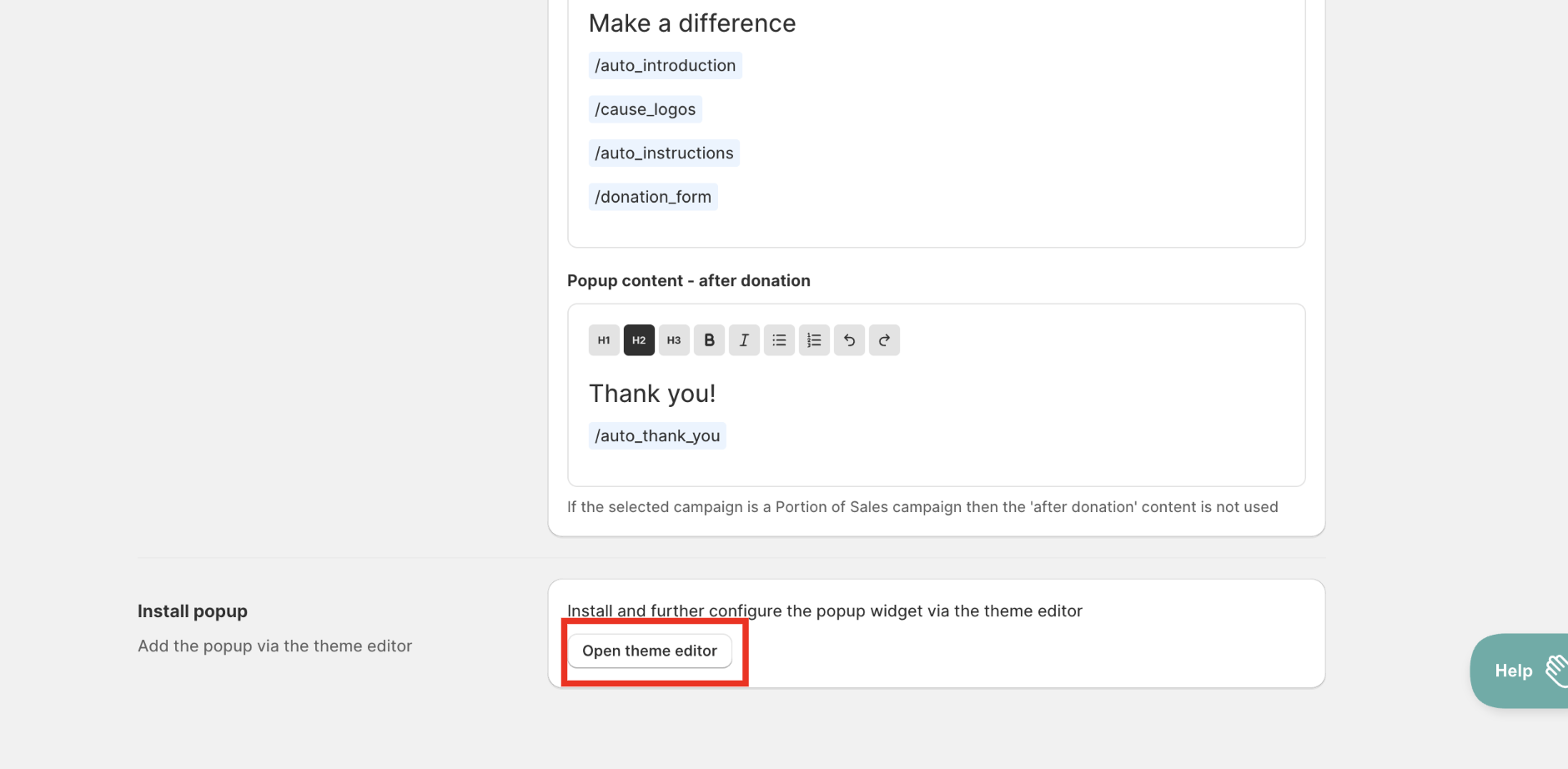
Finally you should set the text that will be displayed in the popup both before and after a donation is added to the cart. You can set the text to whatever you need and if you press the / key you will be able to insert dynamic content including:
- Auto introduction (pre donation only) - an automatically generated introduction that quickly summarises that you are raising funds for your chosen causes.
- Cause logos - a simple display that shows the logo and name of each cause you are supporting - users can get more information on each cause by clicking on the cause they are interested in.
- Auto instructions (pre donation only) - automatically generated instructions that are tailored to how you have configured your campaign.
- Donation form - a donation form tailored to your chosen campaign.
- Auto thank you - automatically generated thank you text that is tailored to how you have configured your campaign.
Installing the popup
The popup widget is installed via the theme editor. You can go directly to the correct part of the theme editor by clicking the shortcut link at the bottom of the configuration page:
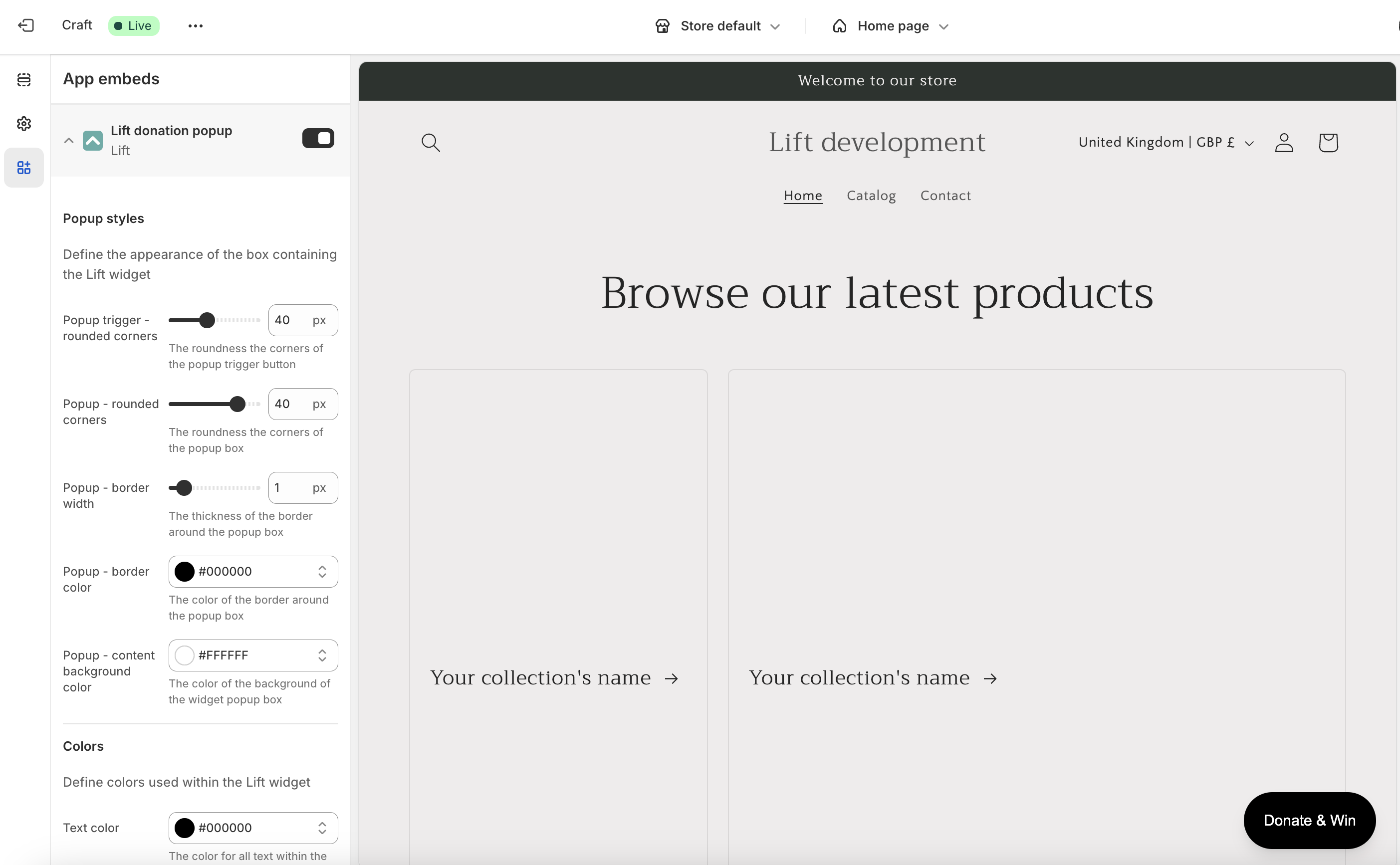
 After the theme editor opens you can toggle the widget (which is called an 'app embed' in the theme editor) on or off. You can also make any visual customisations that you want here including changing the look and feel of the button or visual elements within the popup: